Create Policies
Creating a Policy
Section titled “Creating a Policy”- Navigate to the IAM service in the AWS Management Console.
- In the IAM console, choose “Policies” from the left-hand navigation pane.
- Click on the “Create policy” button.
- In the “Create policy” window, choose the policy type as JSON
- Add the below policy to the content
{ "Version": "2012-10-17", "Statement": [ { "Effect": "Allow", "Action": [ "compute-optimizer:GetEnrollmentStatus", "iam:List*", "iam:Get*", "iam:AttachRolePolicy", "iam:CreateRole", "iam:CreatePolicy", "iam:PutRolePolicy", "iam:CreateAccessKey", "iam:DeleteAccessKey", "ec2-instance-connect:*", "ec2:*", "cloudshell:*", "lambda:*", "dynamodb:*", "freetier:*", "s3:*", "cloudwatch:*" ], "Resource": "*" }, { "Effect": "Allow", "Action": "iam:PassRole", "Resource": [ "arn:aws:iam::*:role/*" ] }, { "Effect": "Deny", "Action": [ "ec2:RunInstances", "ec2:StartInstances" ], "Resource": [ "arn:aws:ec2:ap-south-1:*:instance/*" ], "Condition": { "StringNotEquals": { "ec2:InstanceType": "t2.micro" } } }, { "Effect": "Deny", "NotAction": [ "iam:*", "freetier:*", "cloudwatch:*" ], "Resource": "*", "Condition": { "StringNotEquals": { "aws:RequestedRegion": "ap-south-1" } } } ]}- Provide a unique name for the policy.
my-policy - Click on “Review”. Review the policy details, including the policy name and type, as well as the policy document or selected AWS-managed policy.
- Click on “Create policy”.
The newly created policy will appear in the list of policies. This policy can be used to create resources required for this tutorial.
Assigning the policy to User
Section titled “Assigning the policy to User”- Navigate to the IAM service in the AWS Management Console.
- In the IAM console, choose “Users” from the left-hand navigation pane.
- Select the user you have create
myuser - Click
Add Permissionand select the policy you have created beforemy-policy
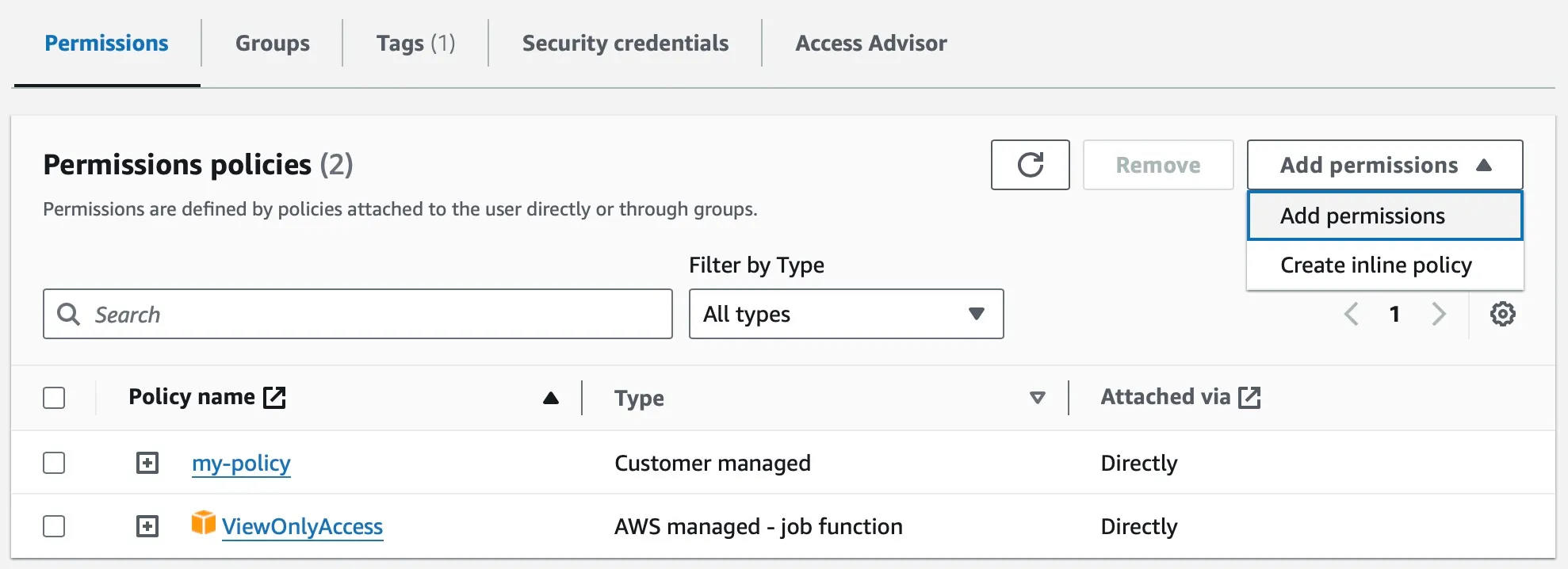
- This user is now restrcited to the policy you have created + Read Only role on all AWS services.
- Goto IAM Dashboard page and identify the URL specific for your aws account.
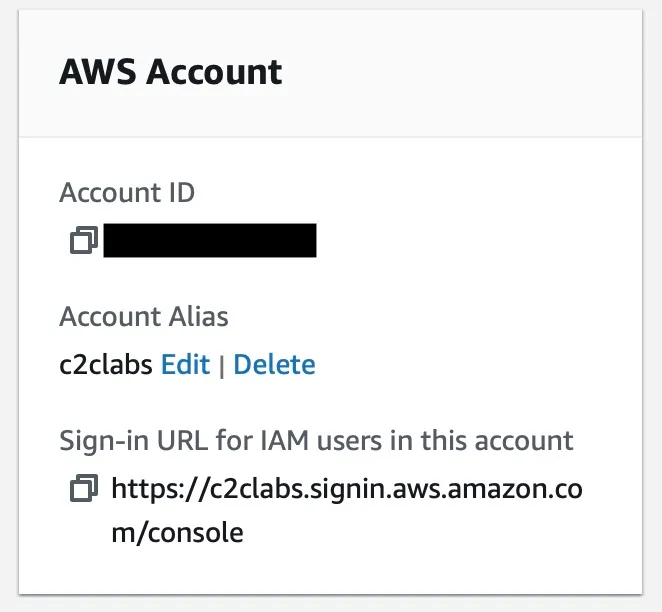
- Open an incognito window in your browser and try logging in with your
myuseraccount