Deploy a webserver
Install Apache webserver
Section titled “Install Apache webserver”- To install apache server, run the command
sudo dnf install -y httpd - Start the server using command
sudo systemctl start httpd - This server is now listening on port
80 - You can perform a curl within the SSH terminal
curl http://localhost:80and will see the below result
<html><body><h1>It works!</h1></body></html>Testing the Firewall
Section titled “Testing the Firewall”- You can try to access the Public IP address in the browser
http://PUBLIC_IP - You wont be able to see the
It Worksresponse in the browser, rather a timeout. Any guess why ??? - This is because of your Security Group rule where you added only access to SSH port
22 - Now to add more rules, open the Security Group that was created earlier
ssh-access - Click on “Edit Inbound Rules” and “Add Rule”
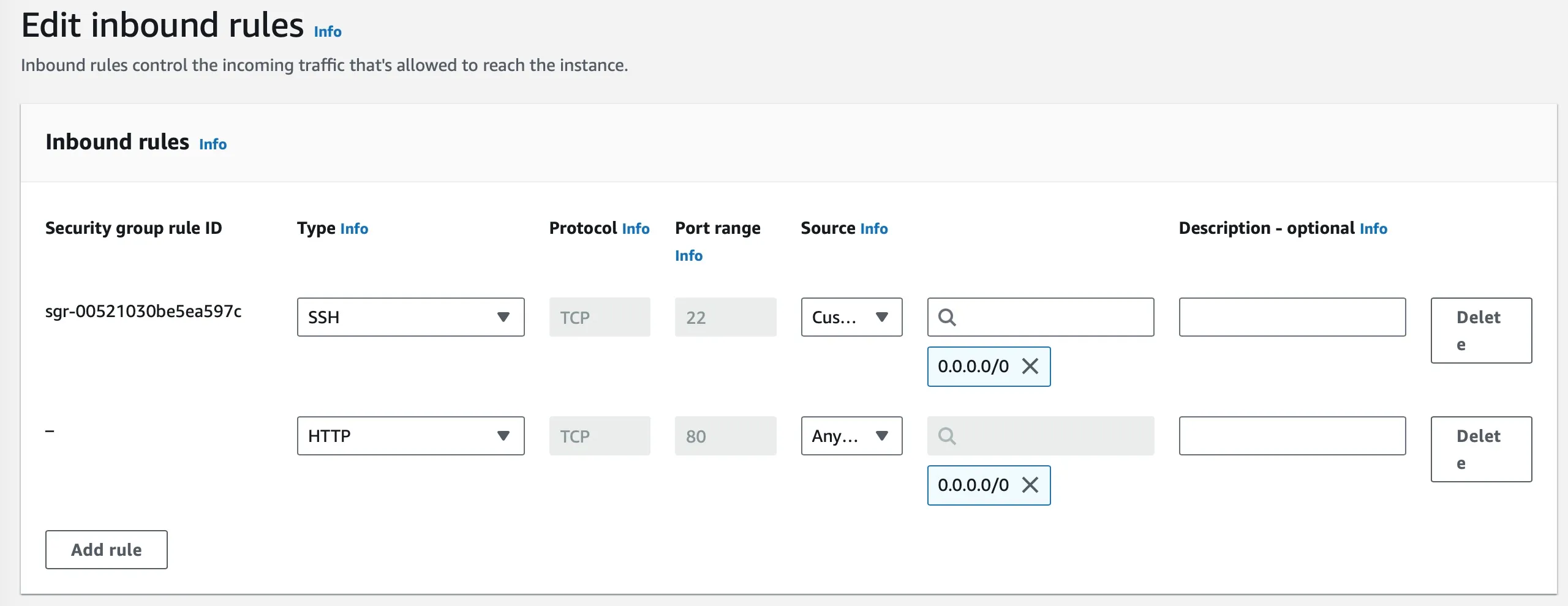
- Add an entry with Type as “HTTP” and with Source as “Anywhere IPv4” and then click “Save Rules”
- This rule will be propogated immediately and you would now be able to access the URL in the browser
http://PUBLIC_IPand should seeIt Works
Terminate instance
Section titled “Terminate instance”Once you test your changes and get to explore on the instances and you no longer need this instance, you can either Stop or Terminate the instance.
Select the instance and goto Instance State and you will have options,
-
Stop Instance : Current state of the VM is maintained and can be reused later if required. Stopped instance can be started again and resumed work.
-
Terminate Instance: State and disk contents are deleted and you cannot recover this instance. This should be done only if you deem instance is not needed anymore.
aws ec2 stop-instances --instance-ids i-0315ccea2876d85c4
aws ec2 terminate-instances --instance-ids i-06ef6d8d73a0bac41