Deploy a static website
Installing NodeJS
Section titled “Installing NodeJS”- Login to the instance running on EC2
- Run the following commands to install node latest version
curl -o- https://raw.githubusercontent.com/nvm-sh/nvm/v0.39.5/install.sh | bash. ~/.nvm/nvm.shnvm install --ltsnode -vCreating your website
Section titled “Creating your website”- You can start with creating your website either from scratch using any web framework like Angular, React.
- For this example you will be using react-static-app which is a popular framework for React. Clone the git repo you created in your shell.
git clone $COPIED_URL- To run this project in local,
npm installnpm run start- This will provide a localhost url with port number which you can see preview and modify code for live reloads.
- Once the changes are done and tested in local. We need to build this project so that it runs on browser.
buildwill create JS files and minify the run time size of the code. This process will create the code which is required for your runtime in a build folder.
npm run buildCreate a S3 Bucket
Section titled “Create a S3 Bucket”- Navigate to the S3 service in the AWS Management Console.
- Click on the “Create bucket” button.
- Provide a unique name for your bucket. Choose the region where you want to store your website data.
UNIQUEPREFIX-static-site - Click on “Create bucket” to finalize the bucket creation.
- Select your newly created bucket from the list.
- Click on the “Properties” tab.
- Under “Static website hosting” towards the end, choose Enabled under “Use this bucket to host a website”. On the “Index Document” type
index.htmland for “Error Document” type404.html - Click on “Save changes” to enable website hosting for your bucket.
- Click on the “Permissions” tab and enable public access by clicking “Edit” under “Block Public Access” and unchecking “Block all public access” and on pop-up confirm.
- Click on “Bucket Policy” and choose “Edit policy.”
- Paste the following policy into the editor:
{ "Version": "2012-10-17", "Statement": [ { "Sid": "PublicReadGetObject", "Effect": "Allow", "Principal": "*", "Action": [ "s3:GetObject" ], "Resource": [ "arn:aws:s3:::UNIQUEPREFIX-static-site/*" ] } ]}- Click on “Save changes” to apply the policy.
Upload Website Files
Section titled “Upload Website Files”- Open the S3 console and select your bucket.
- In the “Actions” menu, select “Upload files”
- Drag and drop your website files or select them from your local computer. You need to copy all the files under
build
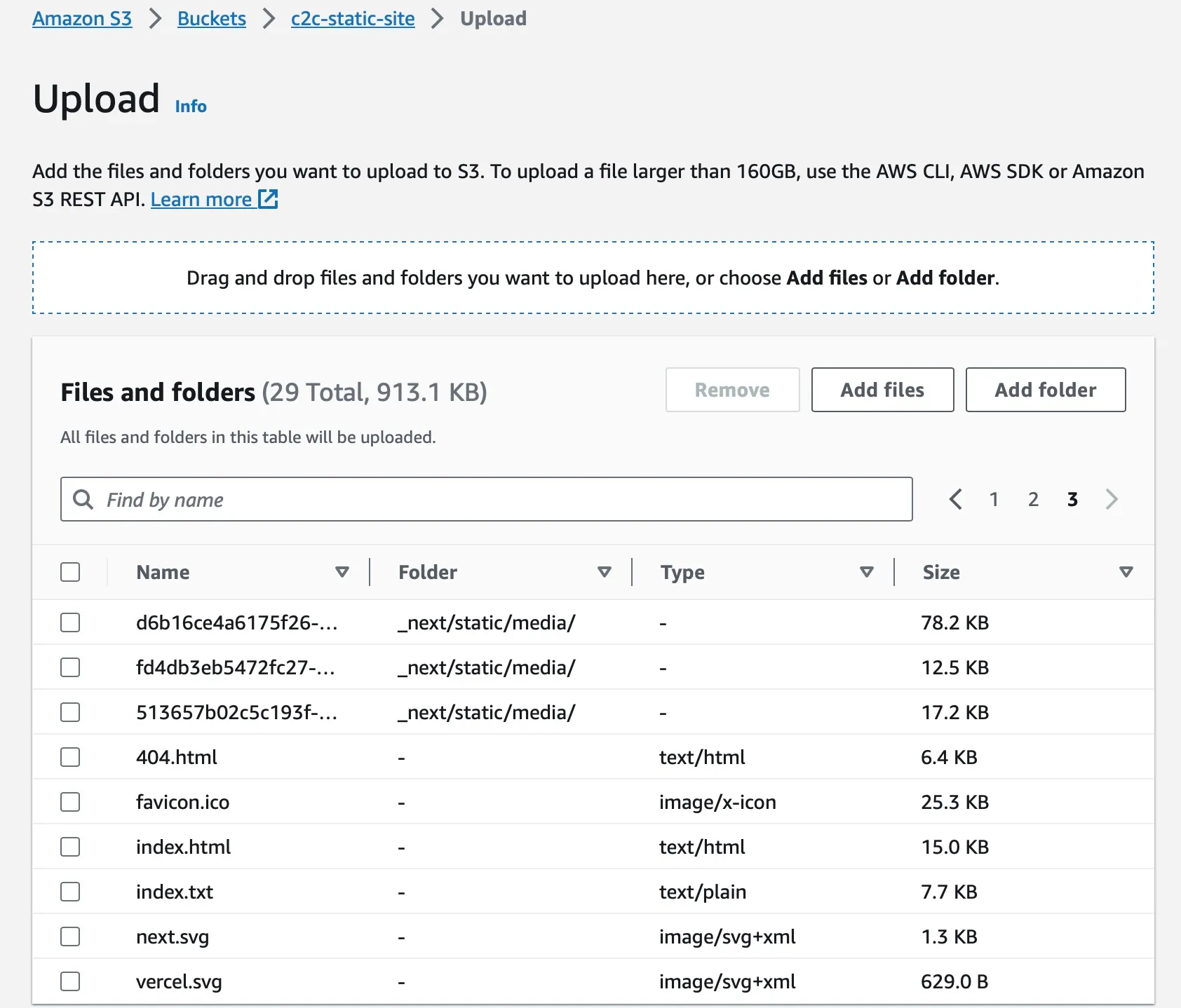
- Click on “Upload” to transfer the files to your S3 bucket.
- If you are using EC2 instance, then give the following command to copy all files from out directory to S3 bucket
aws s3 sync ./build/ s3://UNIQUEPREFIX-static-site --deleteAccess Website
Section titled “Access Website”You can access your website using your bucket’s static website hosting URL, which can be found in the “Static website hosting” section under your bucket’s properties. http://UNIQUEPREFIX-static-site.s3-website.ap-south-1.amazonaws.com
Voila! You just published a website for the whole world to see :)